
Create and manage orders in dealer portal
Order drafts
A draft is an order you're still working on. As soon as you add a product to your order sheet, it's saved automatically as a draft - so you can leave and come back to it later, keep several going at once, and split one order sheet into separate orders.
Drafts are a dealer-only feature.
Starting a draft
- A draft is created automatically the moment you add your first product to the order sheet.
- To start a fresh, empty order sheet, use the + New draft card in your list of drafts. Your current draft stays saved.
- Each draft is tied to the dealer and account that created it.
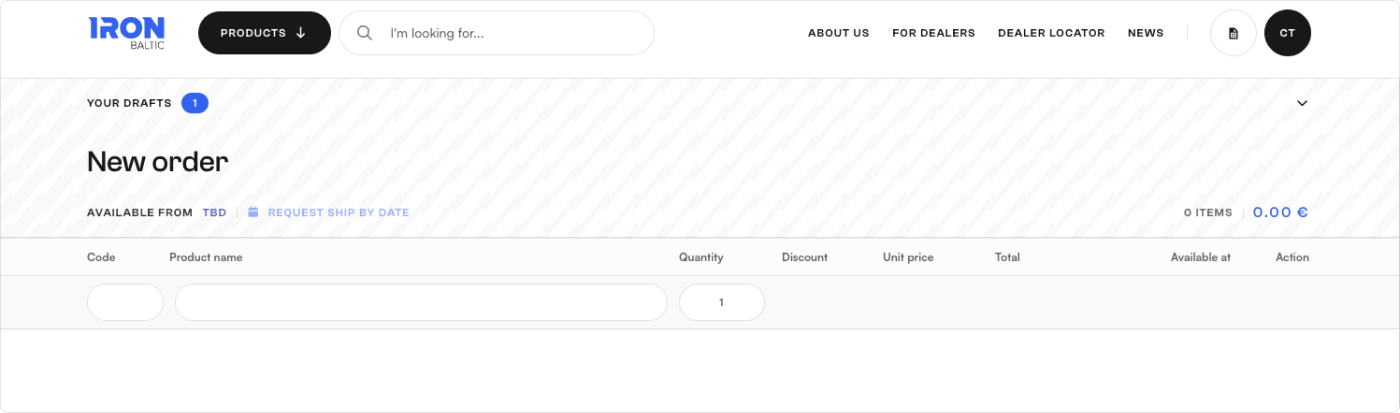
Seeing your drafts
At the top of the order sheet, the Drafts dropdown gathers all your drafts, with a badge showing current open draft count. You can collapse the draft section on your order sheet by clicking the arrow on the right.
Each draft card shows:
- draft number
- creation date
- total amount
- number of products
- the earliest available from date, if calculated
The draft you're currently working on is highlighted in the list. Click any draft card to open it on the order sheet and make it active.
Managing your drafts
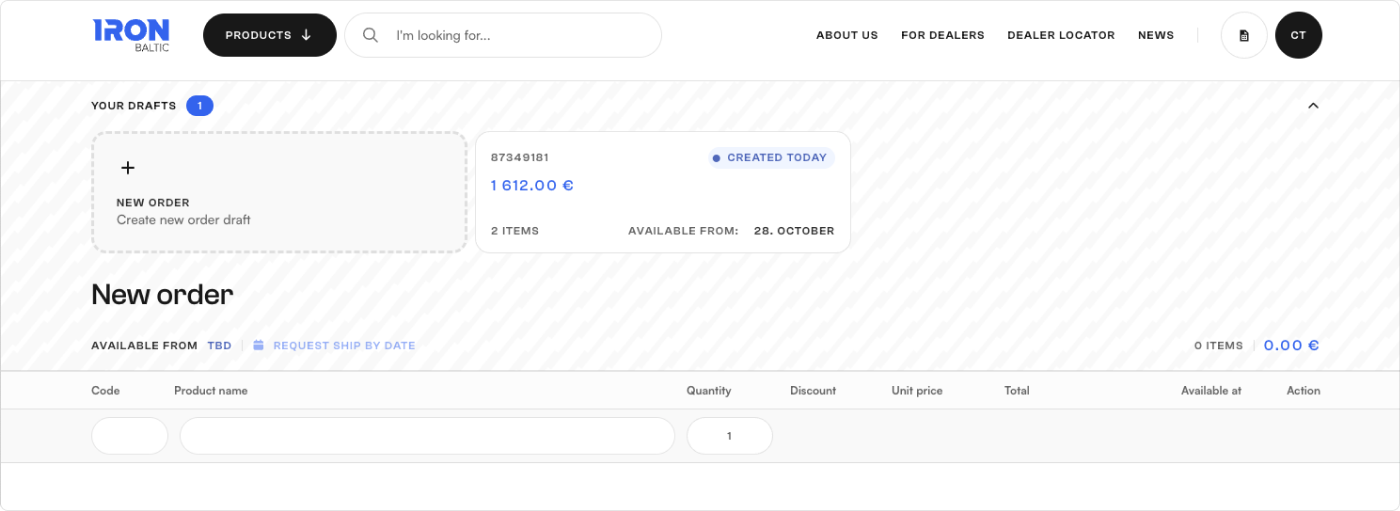
- Start a new draft — click the + New draft card to open an empty order sheet.
- Switch drafts — open another draft from the list to make it the active one.
- Delete a draft — use Delete draft on the order sheet to remove it for good. You'll be asked to confirm first.
Drafts can also be viewed and opened from Dealer Portal Orders view.
Moving products to another draft
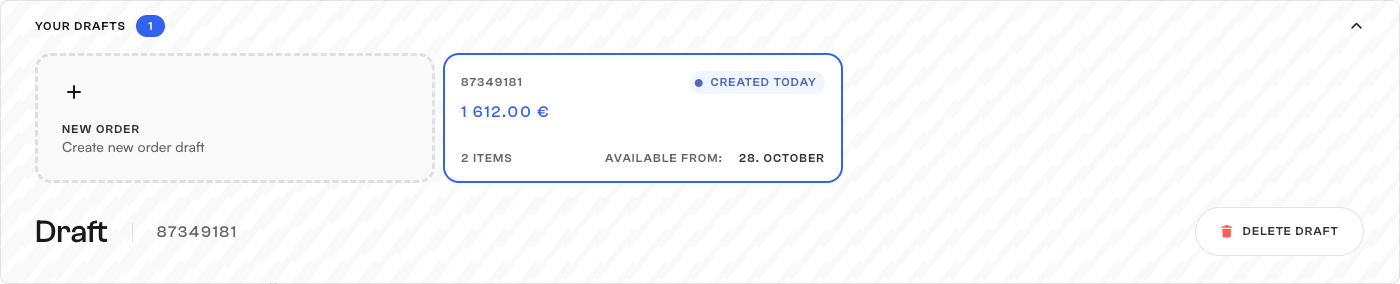
You can move product lines from one draft into another.
- On the order sheet, select the product lines you want to move.
- Click Move items.
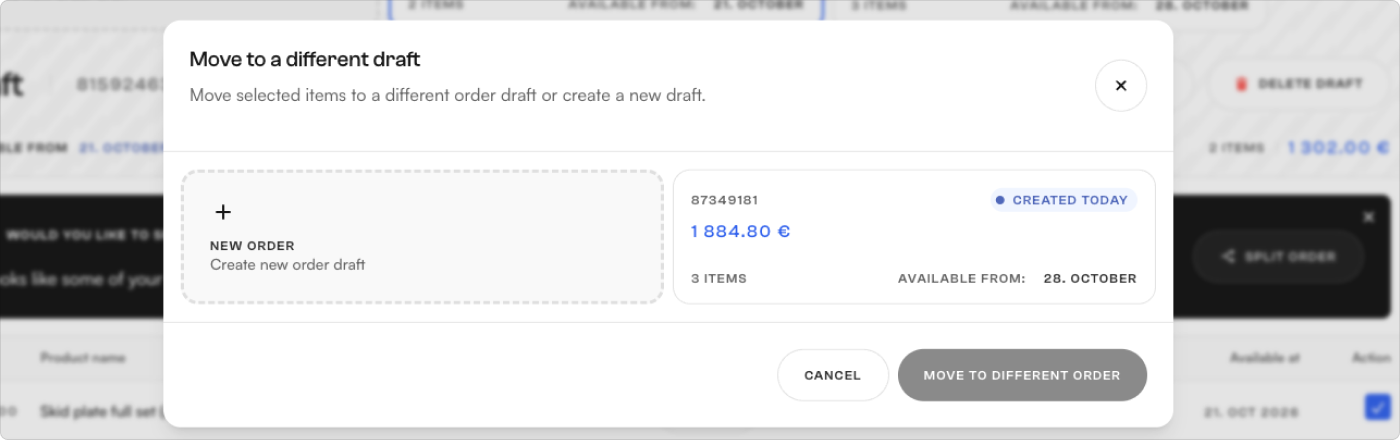
- In the dialog, choose if selected products should move to new order or to another existing draft
The selected lines and quantities are removed from the current draft and added to the destination.
Splitting an order by availability
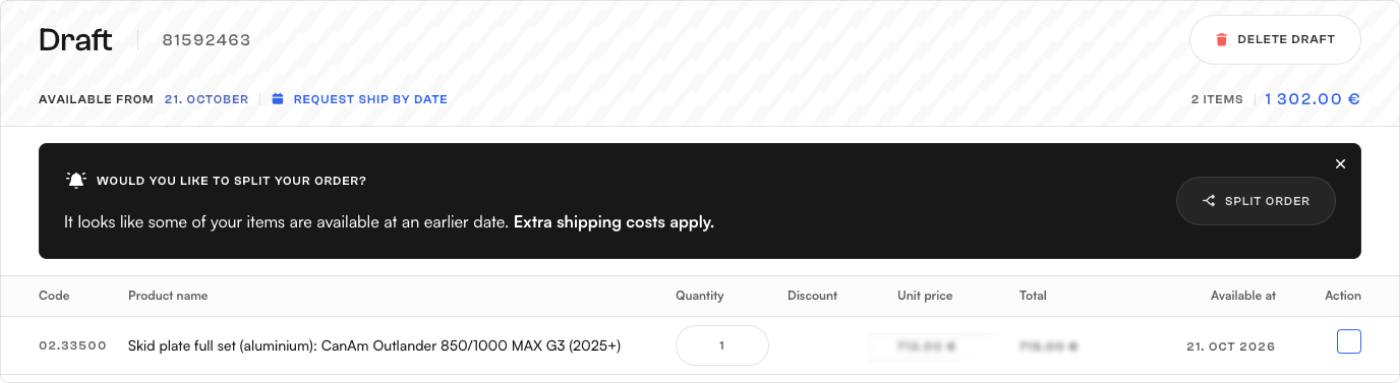
When your order sheet contains products with different available from dates, a split notice bar appears.
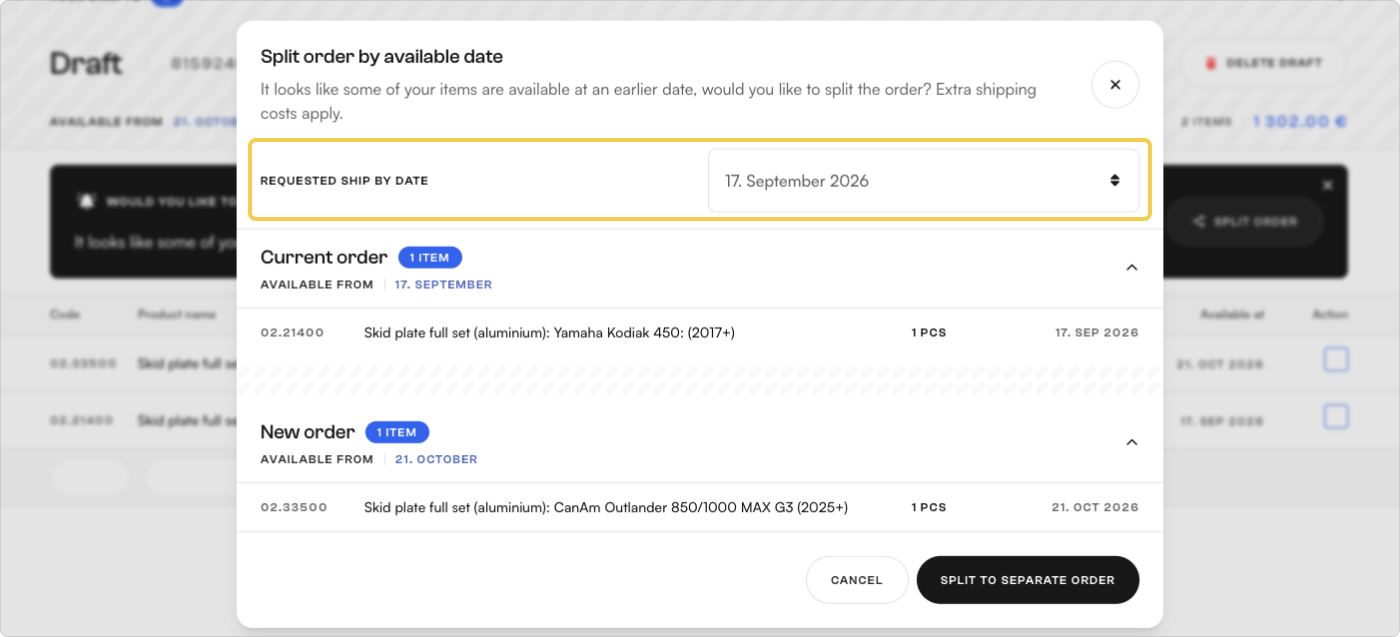
To split the order, pick a date. The system divides the contents into two:
- Current order — the lines and quantities available by the date you chose. If a quantity is only partly available, it's divided according to what's in stock.
- New draft — the remaining lines and quantities, which become available later.
The earliest possible date is suggested by default, and you can't choose one earlier than that. You can also close the notice bar without splitting.
Turning a draft into an order
- When you submit an order from the order sheet, the draft moves into the normal order workflow.
- From there, its status changes automatically as the order progresses — see Orders.
Orders
Once you submit a draft or accept an offer, it becomes a live order. From here the order moves through its stages automatically, and you're kept informed by email at each step.
Viewing an order
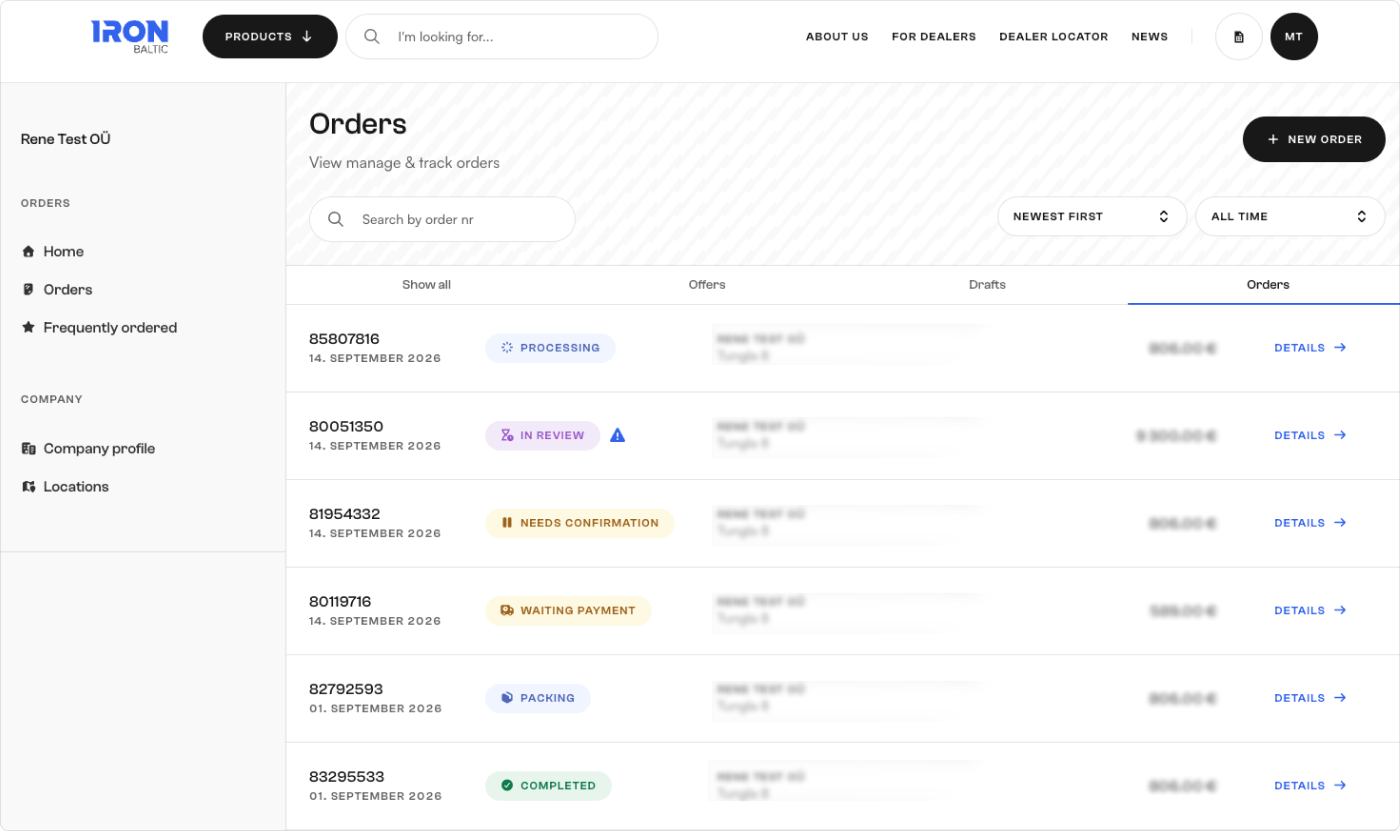
All your previous and ongoing orders are available from Dealer Portal > Orders view. Orders list can be filtered by type: all / offers / drafts / orders.
You can open any of your orders to see its full details.
Order details
- the order number and current status
- the product lines — quantities, prices, and any discounts
- the available from date
- the delivery method and cost
- currency and VAT
- your reference and notes
- any invoices attached to the order
Order statuses
Your order moves through a series of statuses automatically, from the moment it's placed until it's delivered. Each time the status changes, you receive an email with a View order button so you can check the latest details.
- Pending availability / shipping / review - order requires confirmation or added details from sales team before continuing
- Needs confirmation - order requires confrimaton from you before continuing
- Waiting payment - order requires payment confirmation before processing
- Processing - order has been confirmed and is being processed in the warehouse
- Packing - order was sent to packing by warehouse
- Ready - order is packed for shipping / ready for pickup
- Shipped - order has been picked up by our shipping provider
- Completed - order has been delivered
- On hold - order was placed on hold due to delayed confirmation or payment
If something needs your attention or confirmation, you will be notified via email with additional instructions.
Offers
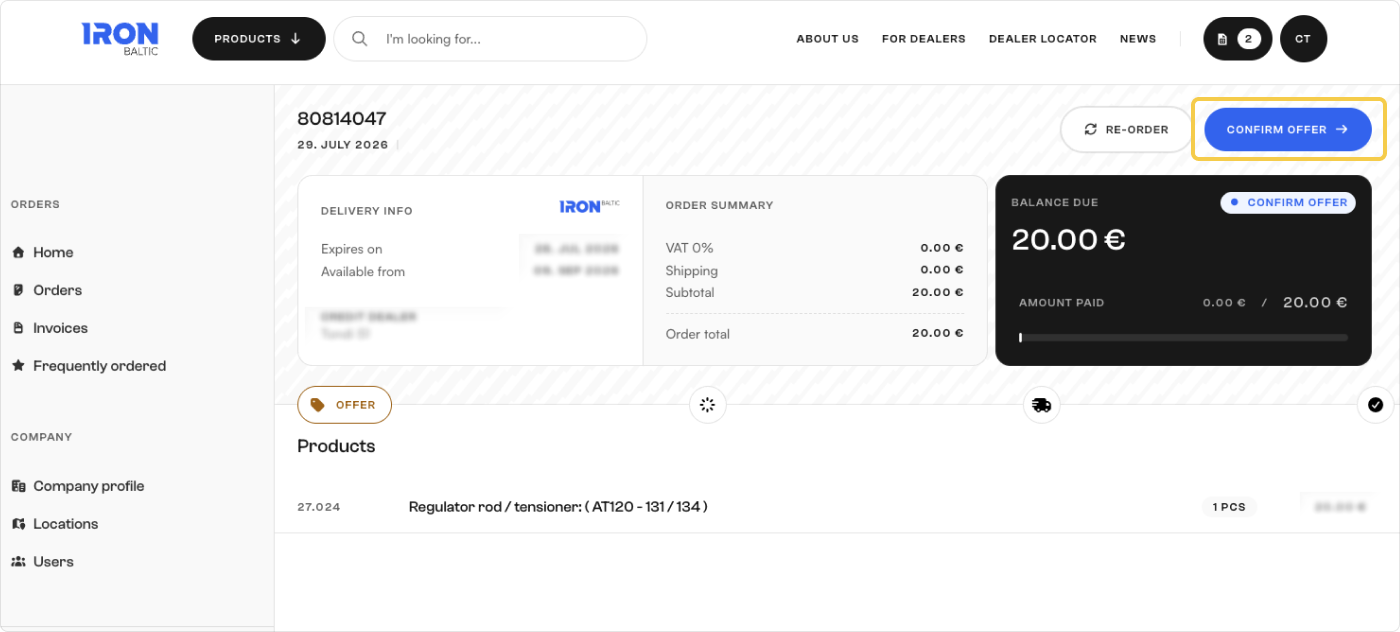
An offer is an order the sales team prepares for you. Instead of building it yourself, you receive a ready-made proposal — with products, prices, and delivery already filled in — that you can review and accept.
Reviewing and accepting offers
When the sales team sends you an offer, you receive an email: "Offer #… waiting confirmation." The email includes a View order button that opens the offer so you can look it over. You can also find offers in your orders list — use the offers filter to see just these.
Open the offer and check the details before you accept:
- the products, quantities, and prices
- any discounts applied
- the available from date
- the delivery method and cost
- currency and VAT
- your reference and any notes
If anything is wrong or missing, contact your sales representative rather than accepting — they can adjust the offer while it's still open.
When the offer looks right, accept it to turn it into a live order. Once accepted, the order enters the normal workflow and moves through its statuses automatically — see Orders.
Offer validity
- An offer is valid for a limited time — by default it expires 7 days after it's sent.
- If you don't accept the offer before it expires, it is cancelled automatically.
- A cancelled offer can't be reopened — ask your sales representative to prepare a new one if you still want to order.